






































Quick Summary: How to measure AI Search Traffic in Google Analytics 4 (GA4) for free, and what to do with it.
The Full Story (Less than 30 seconds):
- GA4 automatically tracks AI Search Traffic in a built-in AI Assistant channel, but only dates back to their rollout.
- Create a Custom AI Search channel grouping with a regex lookup to view historical AI sessions.
- Filter by “Landing Page” to identify which pages AI is sending traffic to.
- Sort by key events rather than sessions to identify the pages where AI ultimately converts.
- Benchmark your AI Search conversions against your organic traffic on rate (not volume). AI Search converts 4.4x better.
- Cross join your high-performing pages against Bing’s grounding queries to understand why they’re being cited by AI.
The key takeaway here? Sessions don’t convert. Find the landing page where AI converts then figure out how to protect it.
Watch out: Most AI tools fail to pass a referral. Expect a significant portion of your real AI traffic to be buried in Direct. Your AI search numbers should be treated as a floor, not a complete measurement.
People are visiting your website right now using AI search engines like ChatGPT, Perplexity, and Google AI Overviews.
The issue?
You’re likely not seeing any of that traffic. Instead, it’s getting lost inside your Direct and Referral traffic, mixed in with everything else.
But that missing traffic matters…
Because AI traffic converts better, it’s worth more per visitor, and it’s growing faster than any channel we’ve seen before.
Today, I’m going to show you how to identify your AI search traffic in GA4 completely free, discover which pages AI is sending traffic to, and pinpoint what amount of that traffic is actually valuable to your business.
Let’s get started!

What Will I Learn?
Why Track AI Search Traffic?
Ranking number one doesn’t automatically win the click. When an AI Overview serves for a search, the top organic result loses 58% of its CTR.
Those clicks aren’t going away.
A portion of them go to your site from AI search engines instead of Google. Those visits show up in none of your normal reports, buried under Direct or Referral. They’re invisible to you.
Here’s why you should hunt them out:
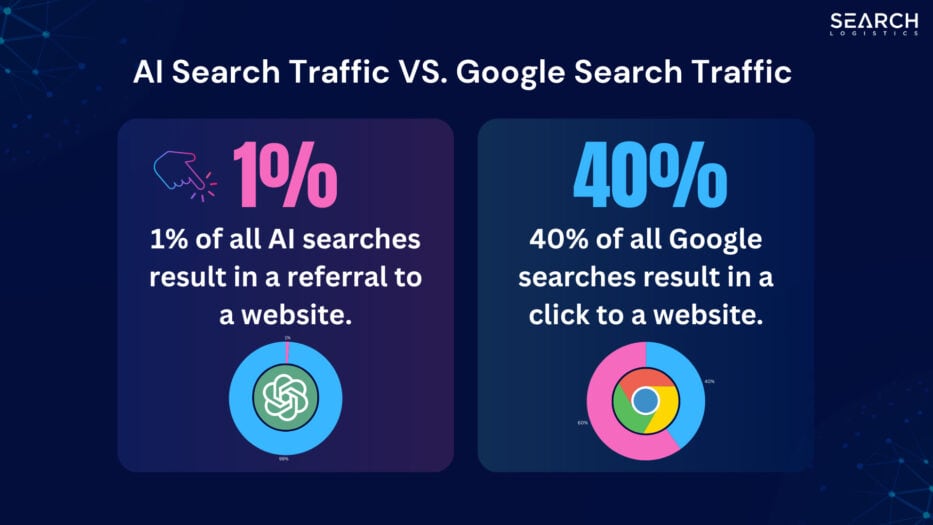
AI searches account for just 1% of web traffic today. Google commands about 48%. That gap is exactly why you keep focusing on rankings for now.
If you do care about AI search traffic, here’s why it’s worth caring about:
AI referral traffic converts 4.4x higher than traditional search.Your normal reports aren’t capturing it yet, but this tiny channel is growing faster than any you know and each visit is worth more than what you’re already optimizing for.
That’s why you should track it.
Finding it is the tricky part. Search Console will never show you clicks or conversions from AI.
You need GA4 for that.
Set Up AI Search Tracking In GA4
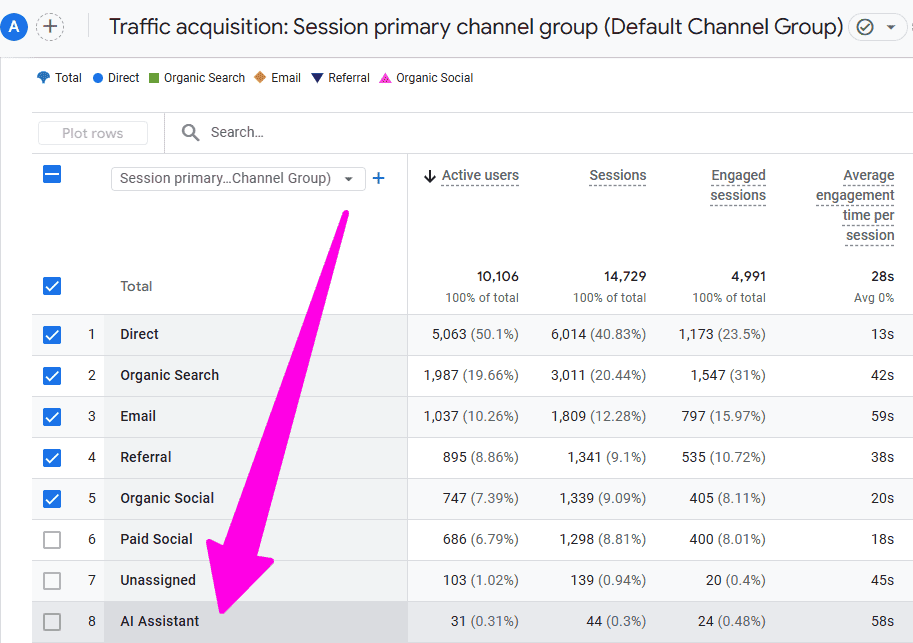
Google Analytics 4 has a dedicated “AI Assistant” channel that automatically reports traffic from AI search platforms like ChatGPT, Perplexity, Claude and Gemini.
Here’s how to access it:
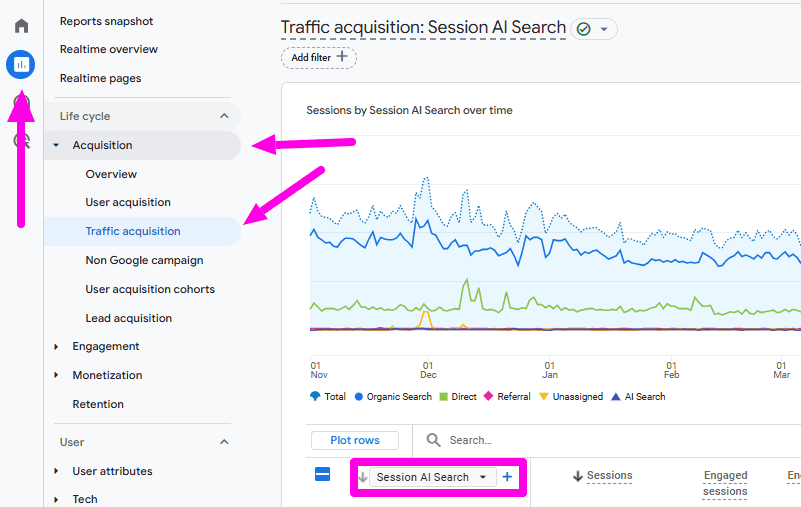
- Click on Reports, Acquisition, Traffic Acquisition
- Keep the primary dimension set to Session Default Channel Group (this is the default)
- Look for the AI Assistant row in the channel list (use the search box above the table if you don’t spot it)
The catch?
This channel only classifies traffic going forward from its rollout, so your historical AI traffic stays buried in Referral and Direct.
So to capture as much AI traffic as possible, you need to create a custom channel group on top of it.
Here’s how to set it up:
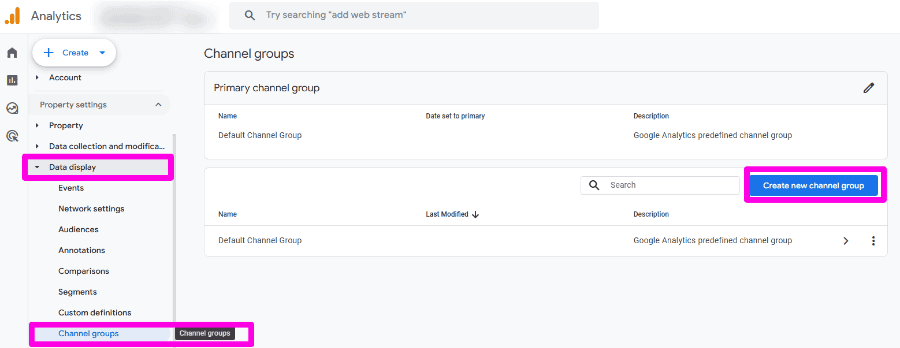
- Go to Admin, select Data Display, and click Channel Groups
- Click Create new channel group
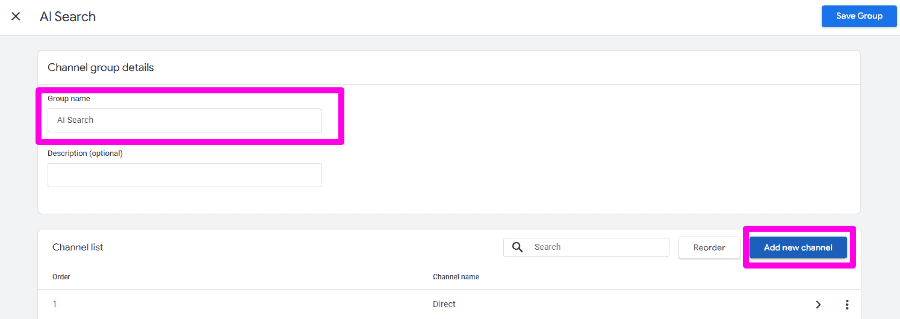
Name the new channel “AI Search” and click “Add new condition group”.
Next, set the rule to Source, click Add a condition, and choose “matches regex”.
Copy and paste the regex code below:
chatgpt.com|chat.openai.com|openai.com|perplexity.ai|claude.ai|gemini.google.com|copilot.microsoft.com|edgeservices.bing.com|deepseek.com|grok.com|meta.ai
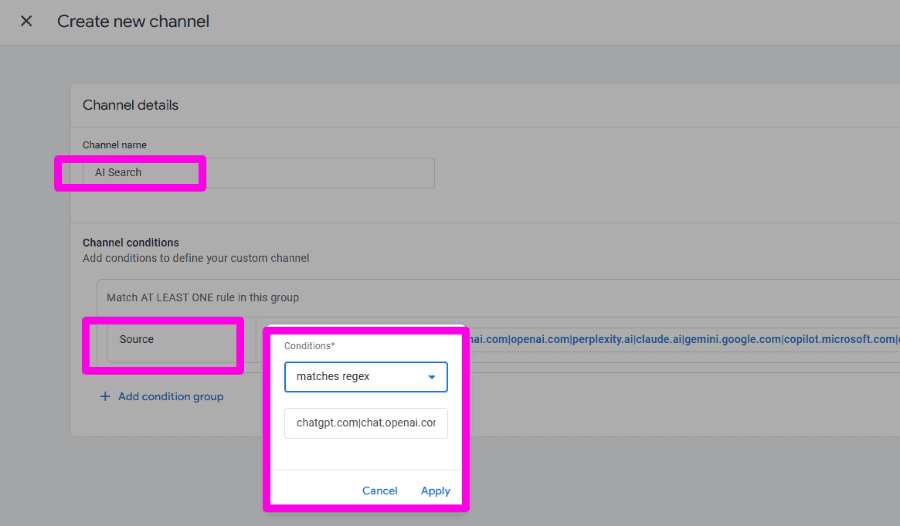
Click Save channel, then Save group.
Head back to your traffic acquisition report and change the primary dimension to “Session AI Search Channels”…
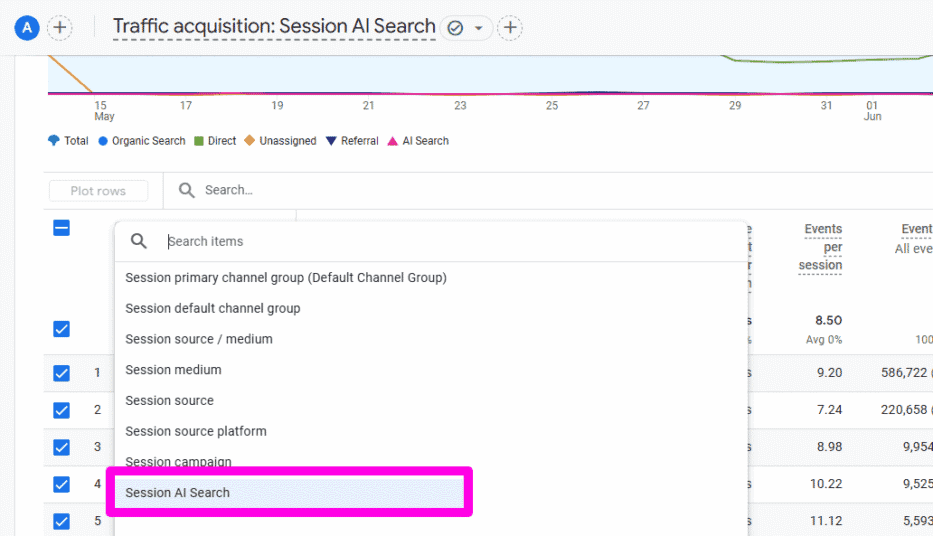
…and you’ll see your AI Search channel as a row, with historical data included.
NOT SHOWING? Then simply wait a few minutes or hard refresh your page. It can take a while to show up.
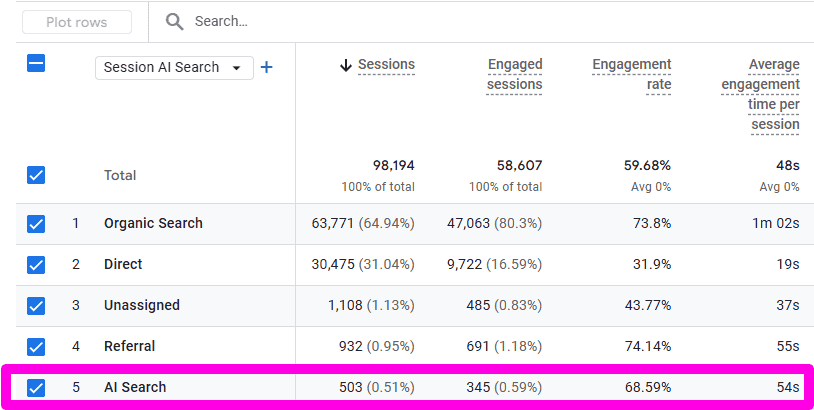
Now you can check the exact traffic you get from AI search each month.
Find Which Pages Pull AI Visitors
Your AI Search channel consolidates all that traffic into one number for your entire site.
But to do anything about it, you have to know what pages they’re landing on.Those are the pages AI is sending visitors to, and those are the pages that need protecting.
The easiest way to see those pages is with a Free Form exploration. Here’s exactly where to click:
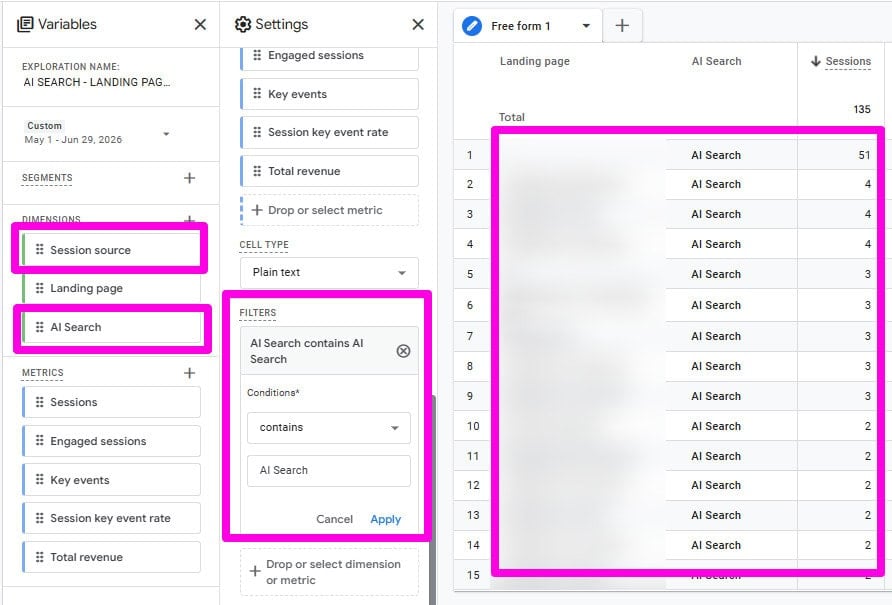
1. Open a blank exploration
In the far-left menu of GA4, click Explore (it’s the icon that looks like a small chart, below Reports). On the next screen, under “Start a new exploration”, click the Blank tile (sometimes labelled “Free form”).
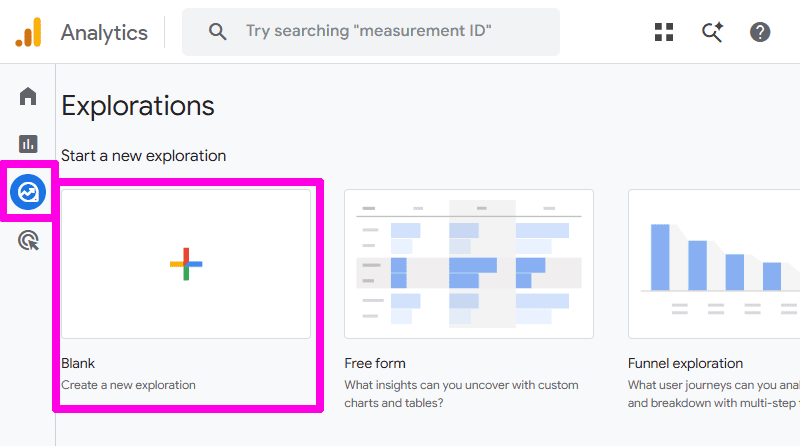
This opens the exploration builder.
You’ll see three columns: Variables on the far left, Settings next to it, and the big results area on the right.
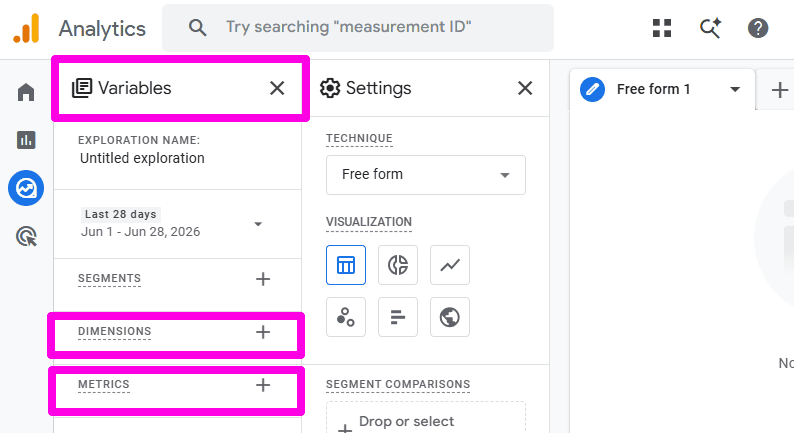
2. Add your dimensions
In the Variables column (far left), find the Dimensions row and click the small blue + next to it. A search box opens.
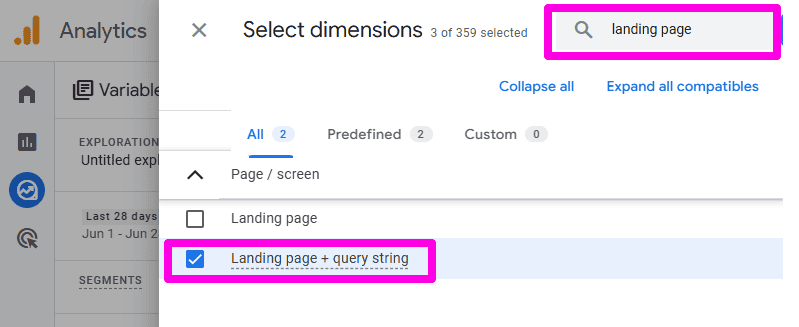
- Search Landing page and tick the box next to “Landing page + query string”
- (Optional) Also search and tick Session source if you want to break down which AI tool sent each visit
- Click Confirm (top right of that box)
Those dimensions now appear in the Variables column, ready to use.
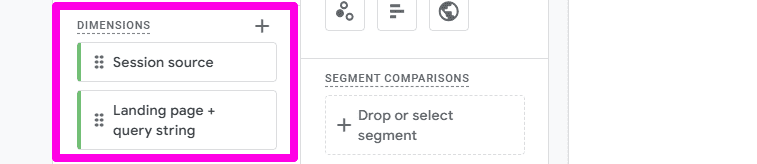
3. Add your metrics
Still in the Variables column, find the Metrics row just below Dimensions and click its +.
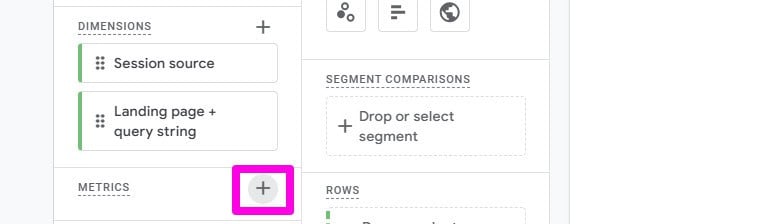
In the same kind of search box, tick each of these:
- Sessions
- Engaged sessions
- Key events
- Session key event rate
- Total revenue (only if your site sells things)
Click confirm. Your metrics are now sitting in the Variables column too.
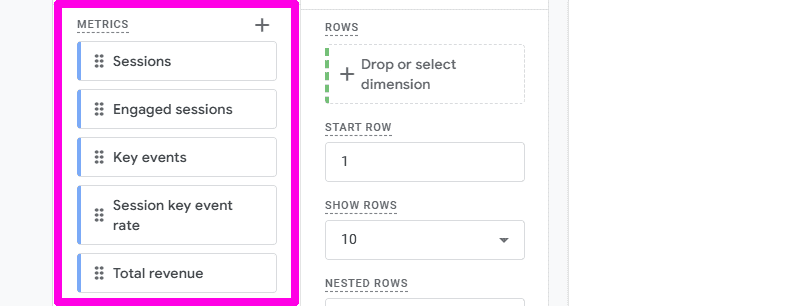
4. Drag them into the report
Nothing shows up until you place these into the layout. Look at the Settings column (second from left).
- Drag Landing page from the Variables column into the ROWS box in Settings
- Drag each of your metrics into the VALUES box in Settings
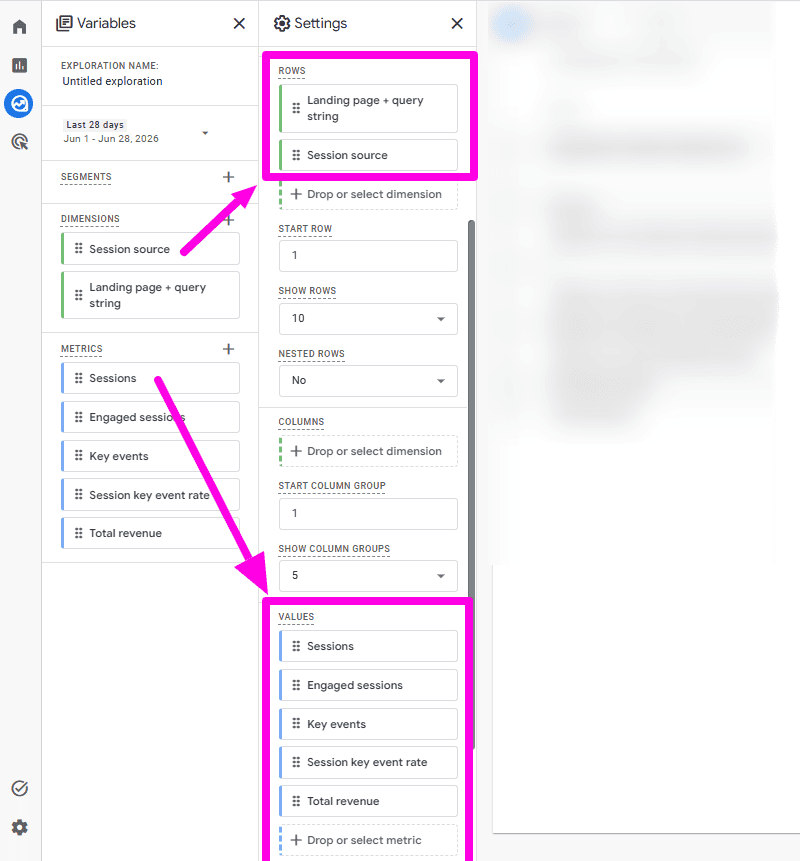
The results area on the right will now fill with a table: your landing pages down the side, your metrics across the top.
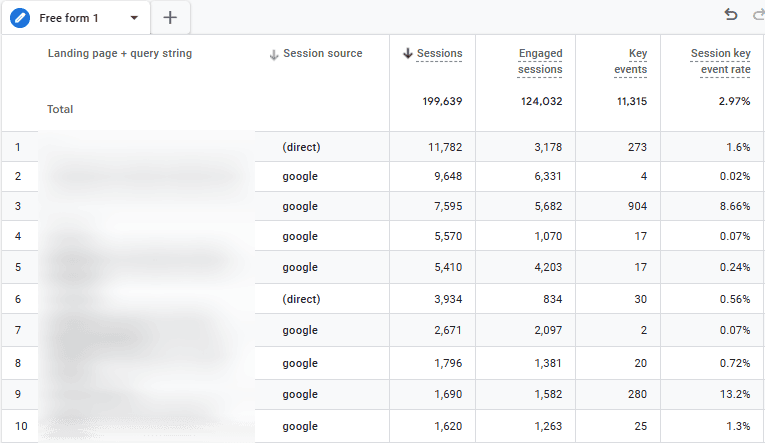
5. Filter it down to AI traffic only
Right now the table shows all traffic. You only want AI. In the Settings column, scroll to the Filters box at the bottom and click it.
The reliable way (works for everyone):
- In the filter dropdown, choose Session source as the dimension
- Set the match type to matches regex
- Paste the same regex you used when you built your channel earlier:
chatgpt.com|chat.openai.com|openai.com|perplexity.ai|claude.ai|gemini.google.com|copilot.microsoft.com|edgeservices.bing.com|deepseek.com|grok.com|meta.ai

Click Apply and you’ll see the AI platforms referring traffic.
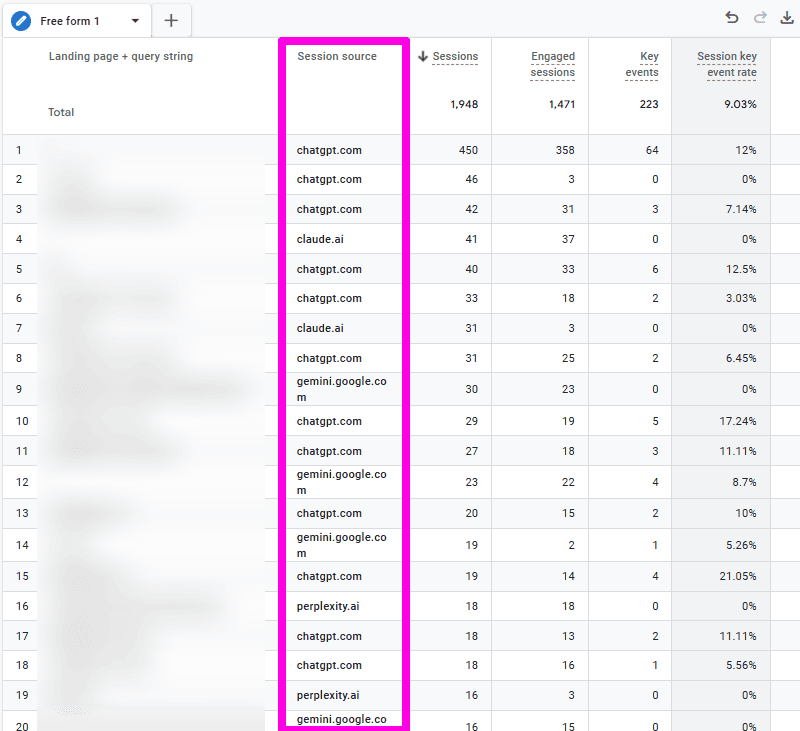
How to get total AI referral traffic: Some accounts let you filter directly by your custom channel. If you see your custom AI Search Channel available as a filter dimension, you can use that to filter by instead of the regex and set it to your AI Search channel. .
If you don’t see it, don’t worry, the Session source regex above does exactly the same job
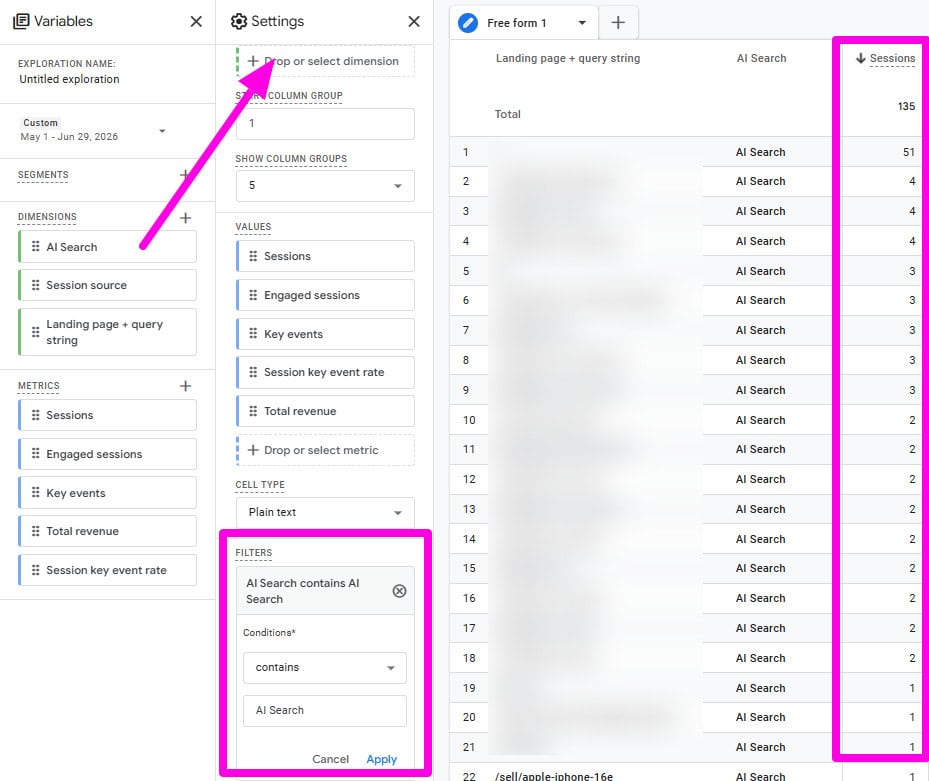
Boom. You now have every page AI Search drives visitors to, ranked by importance.
Important: Most AI tools do not include a referrer, so anywhere from 5-50% of REAL AI visits to your site will show up in Direct, not your “AI Search” channel. Keep that in mind when browsing this report.
Don’t think of it as an all-inclusive list, but rather a floor.
Everything on here is definitely getting AI traffic. It’s just that some AI tools aren’t passing a referrer, and the pages that appear below may STILL be getting AI traffic from those tools invisibly.
Pro Tip: Name and Save this exploration so you can one-click to open it every month. Pay attention to which landing pages rise to the top. Plug those pages into your Bing AI Performance report to find out which of your citations are sending REAL visitors to your site.
See Which AI Traffic Actually Converts
Knowing your AI traffic per page is valuable information. But that still doesn’t tell you which pages are performing well, and more importantly – making you money.
This is where your citation reports fall short.
You can see in Bing that you’re being cited. You can see in Search Console that you’re getting impressions. Only GA4 can show you if any of it actually leads to a sale, lead or booking.
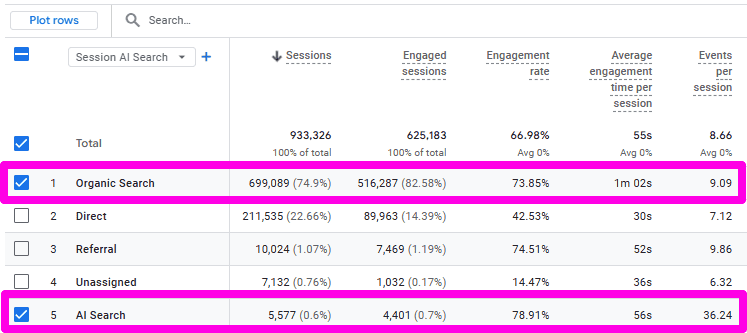
Let’s dive into it.
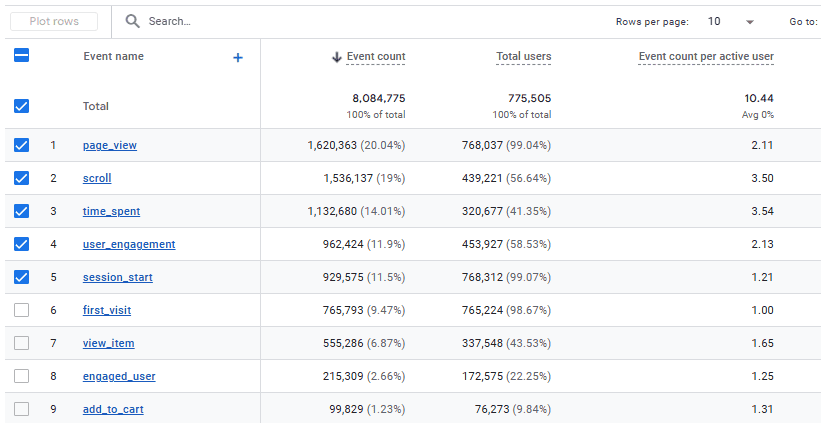
Head into your GA4 account and make sure your key events are set up. These are the actions that matter to your business:
- Purchases
- Form submissions
- Newsletter signups
- Phone calls or booking requests
If you haven’t already, first make sure those are set up. Without key events, GA4 has no way of tracking conversions.
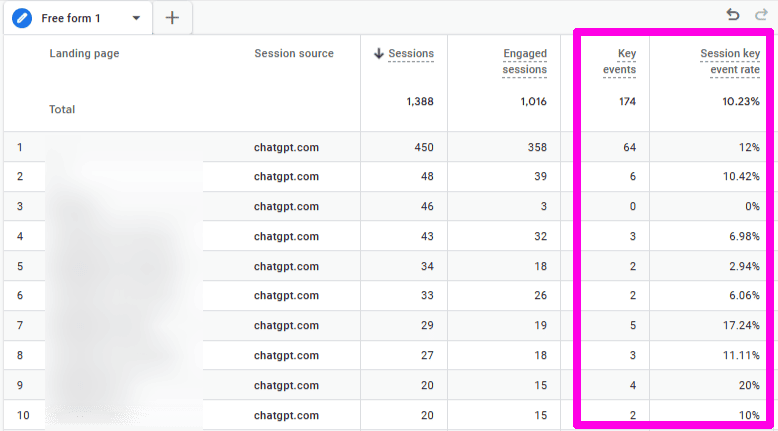
Once you have that, navigate back to the Free Form exploration we created in the previous step.
- Keep Landing page in your rows
- Add Key events and Session key event rate to your values
- Keep your AI Search filter applied
Now you’re not just seeing how much AI traffic each page gets. You’re seeing how much of that traffic converts.
Here’s where it gets interesting…
The pages that get the most AI traffic are usually not the pages that convert the best.You’ll quickly notice that the pages getting most of the AI traffic usually aren’t the ones converting the best.
You’ll see blog posts pulling in loads of AI visitors, that convert next to nothing.
Then you’ll notice a single product/service page pulling maybe 10% of the traffic, but generating the majority of your revenue.
That’s the page you protect.
Keep track of its citations in Bing. Get more links pointing to it. Update the content regularly. This page is quietly making you money from AI search queries, and is the last page you want to lose visibility on.
Pro Tip: Add Session source as a secondary dimension to see which AI platform your converting traffic is coming from. You may discover that ChatGPT visitors convert twice as well as visitors from Perplexity, directing you to focus your efforts.

Compare AI Traffic Against Organic Search
Discover the key metric that will totally shift how you view AI search.
Don’t compare AI search traffic to Google search volume. Compare its quality.
AI traffic looks insignificant compared to traditional organic search. But comparing sessions isn’t what’s important.
How to compare AI traffic to organic traffic:
- Open your Traffic acquisition report
- Set the primary dimension to Session AI Search Channels
- Compare your AI Search and Organic Search channels side by side
The three metrics that matter:
- Engagement rate – are AI visitors actually sticking around?
- Session key event rate – what percentage of visits convert?
- Average revenue per session – how much is each visit worth? (ecommerce only)
This is where it clicks.
Traffic originating from AI tools converts 4.4x better than traffic from traditional organic search. Now you can measure it for yourself.
Visitors landing on your website from AI assistance are generally further along in their buying journey.
They asked a question, and the AI likely pulled up your page as part of the answer.
On average, these visitors are warmer than a typical organic search visitor.
You’ll have less traffic. But every visitor is more valuable.That’s why you should care about AI search now that it’s relatively small.
Important: Don’t stress if your AI referral traffic is tiny. AI search makes up about 1% of all web traffic compared to Google’s 40%. Small sample size could be skewing your numbers. Remember, we care about quality conversions and growth rate, not size.
Cross-Reference GA4, Bing And Search Console
GA4 tells you the traffic. Bing tells you the citations. Search Console tells you the impressions. Line all three up against the same pages, and you close the loop.
Here’s what GA4 alone doesn’t tell you:
You browse your exploration data in GA4 and find a page that’s receiving AI traffic and converting well. What you don’t know is why AI is sending people to that page in the first place, or where else it’s showing up.
That’s what Bing and Search Console fill in.
Step 1: Start With Your Converting Pages
You already built this list in the last two sections. Take your top converting AI landing pages from the GA4 exploration. These are the pages worth investigating, not your whole site.
Step 2: Find Out Why Bing Cites Them
Open the Bing AI Performance report and find those exact URLs.
Look at the grounding queries Copilot is using to cite each page.
- That they’re being cited (Bing)
- What queries they’re being cited for (Bing)
- That the traffic actually converts (GA4)
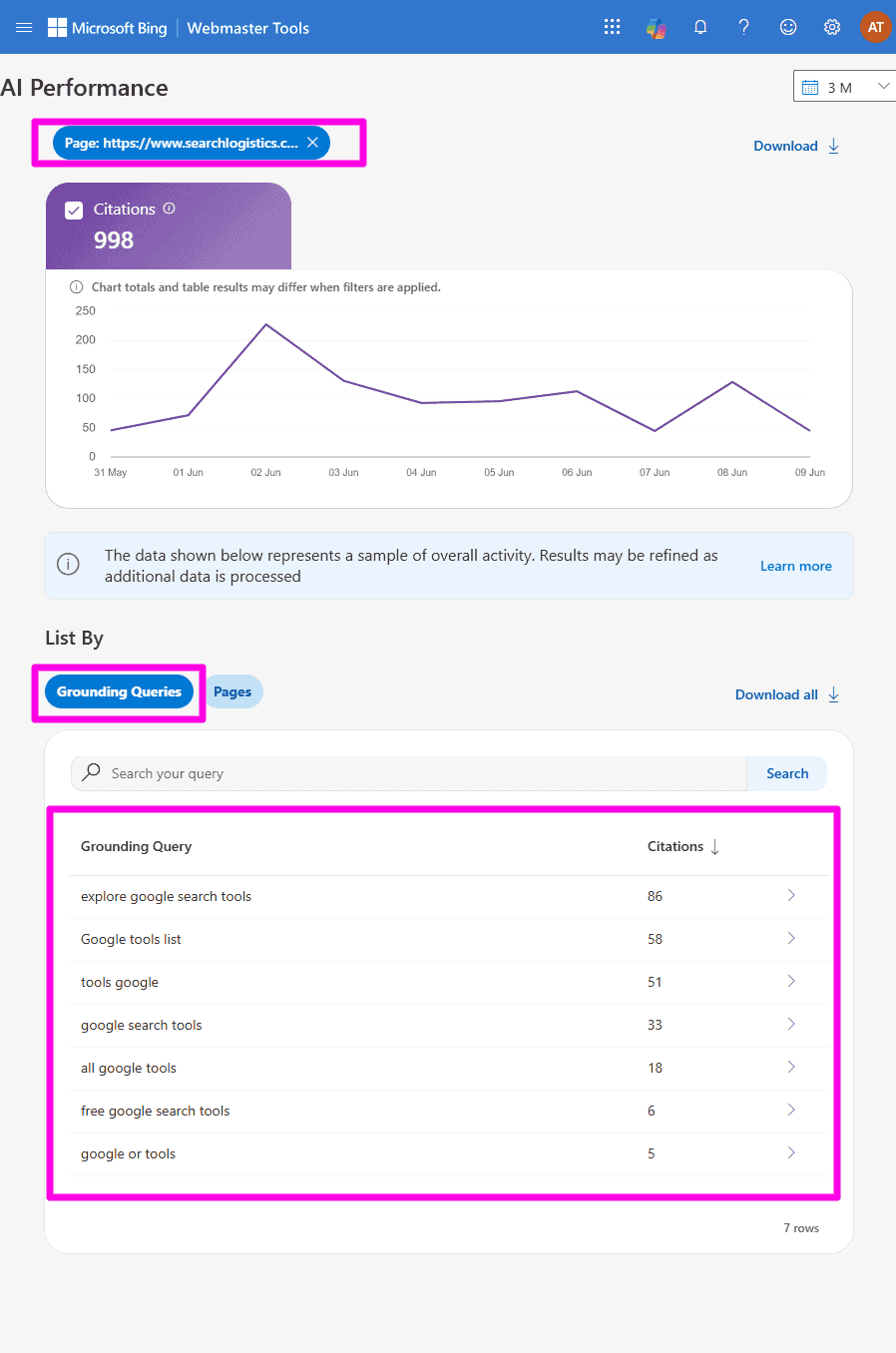
That’s already enough to double down on your best content. Build links to those pages. Optimise around the grounding queries already driving traffic.
Pro Tip: Bing only covers Copilot, because it’s the only platform showing grounding query data right now. But due to the Bing and OpenAI partnership, strong Copilot citations typically correlate with strong ChatGPT citations too. I show you how to set up Bing AI Performance from scratch in this guide.
Step 3: Add Google’s Side With Search Console
Bing covers Copilot. For Google AI Overviews and AI Mode, you need Search Console’s Generative AI report.
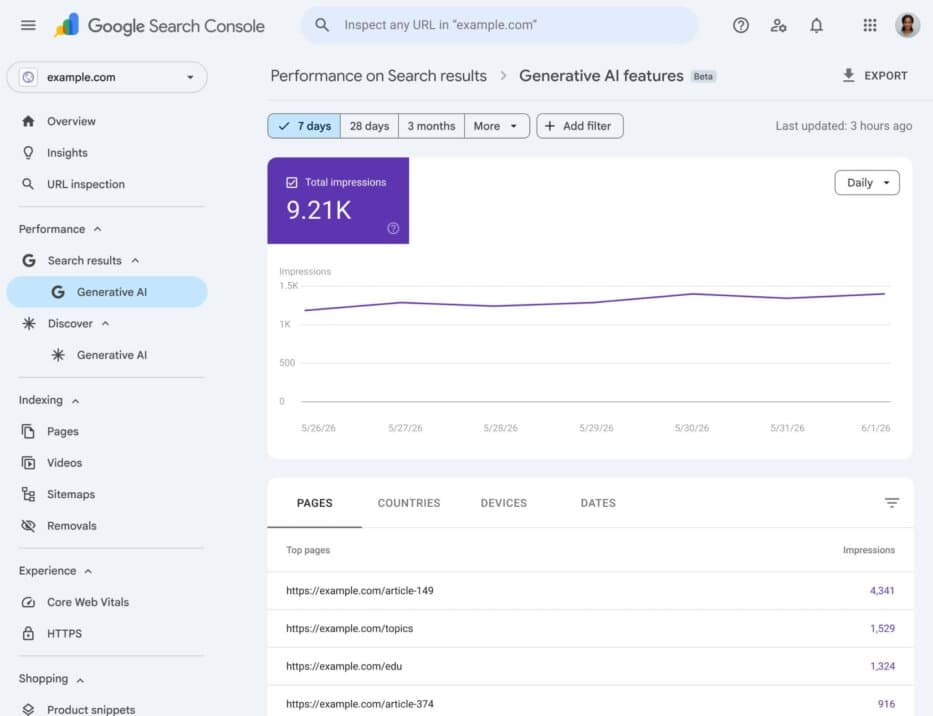
Here’s how to access it:
- Log in to Google Search Console
- Click on Search results, then Generative AI
This shows which of your pages appear inside AI Overviews, AI Mode and generative Discover, broken down by impressions.
The big limitation: Google gives you URL impressions, not query data. It also won’t show searches made in the Gemini app or Workspace.
So you can’t see which queries trigger those impressions. But you can estimate them using the Bing data you just pulled.
Step 4: Use Bing’s Queries To Decode Google’s Impressions
Both reports share one data point – URLs. So line them up:
- Export the pages being surfaced in Google’s Generative AI report over the last 3 months
- Take the top 10 by impressions
- Look at the Bing grounding queries for those exact same URLs
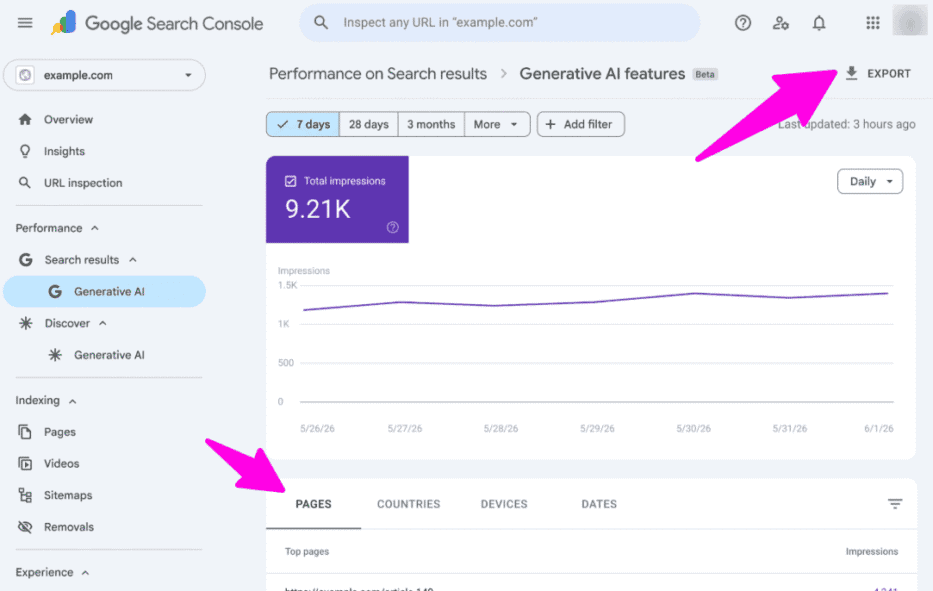
It’s highly likely Google is using similar queries to Bing when your pages earn impressions in AI Overviews. Google tells you the URLs, Bing tells you the probable queries.
Important: Bing AI and Google AI are different engines. Treat this as a strong proxy, not a direct match.
Step 5: Spot The Pages Losing Clicks To AI Overviews
One last cross-reference. In Search Console, open your organic Pages report and select “Compare last 28 days to previous period”.
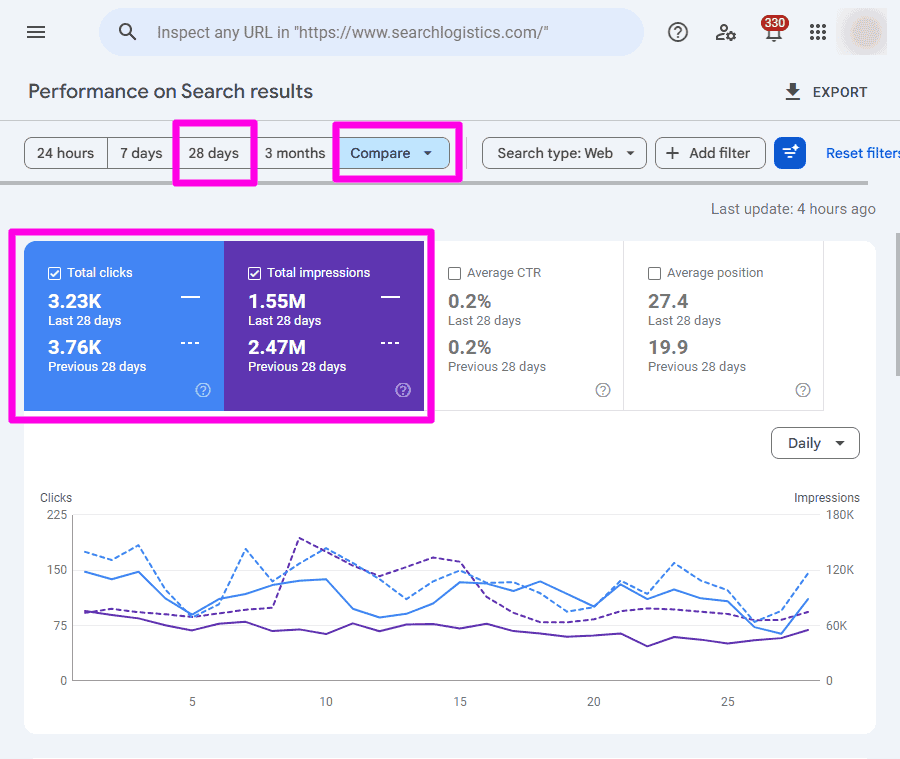
Look for pages with similar impressions but significantly lower clicks and CTR than the previous period.
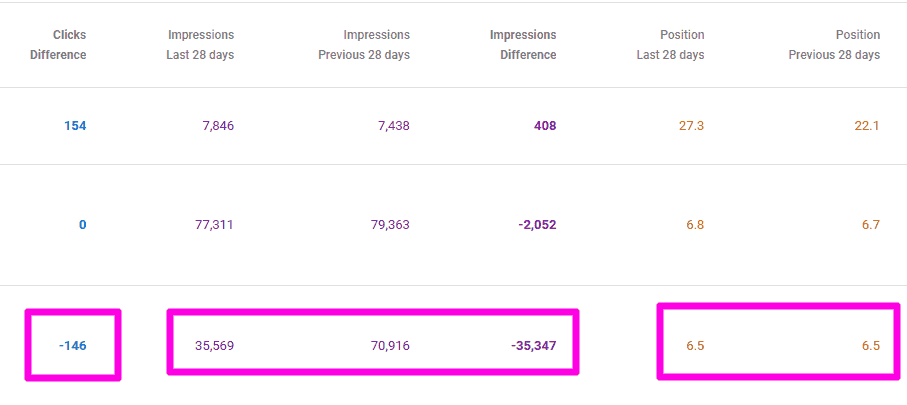
That’s the signal a page still ranks, but AI Overviews are eating its clicks. Click the page, open the queries tab, then cross-reference those queries against Bing’s grounding queries for the same URL.
Now you’ve got the full picture on every important page:
- GA4 – is it sending converting traffic?
- Bing – what queries is Copilot citing it for?
- Search Console – is it surfacing in Google AI Overviews, and losing clicks there?
That’s everything you need to know which pages to protect, and exactly what to optimise to win more AI visibility.
The Limits Of GA4 AI Tracking
GA4 is your best free tool to measure AI search traffic. But there are limitations.
Here’s what you need to know so you don’t over interpret the data.
A Lot Of AI Traffic Classifies As Direct
This is the big one.
Lots of AI programs don’t include a referrer when they send traffic to your site. The big one here is ChatGPT’s browser app.
When that happens Google Analytics has no way of knowing where the visitor came from. Instead of showing up in your AI Search channel, it gets lumped into Direct traffic.
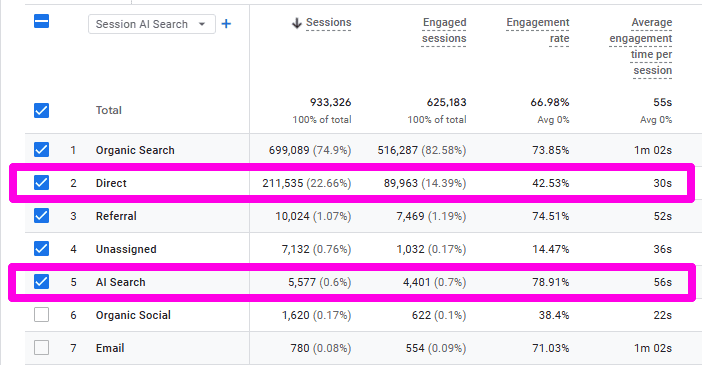
Think of the number as a floor, not a ceiling. Pages that show are definitely getting AI traffic. Pages that don’t may be too, they’re just invisible.
Google AI Assistant Channel Only Applies To Future Dates
Google’s native AI Assistant traffic channel only began tracking visits starting on its release date. Anything before that is lost in Referral and Direct.
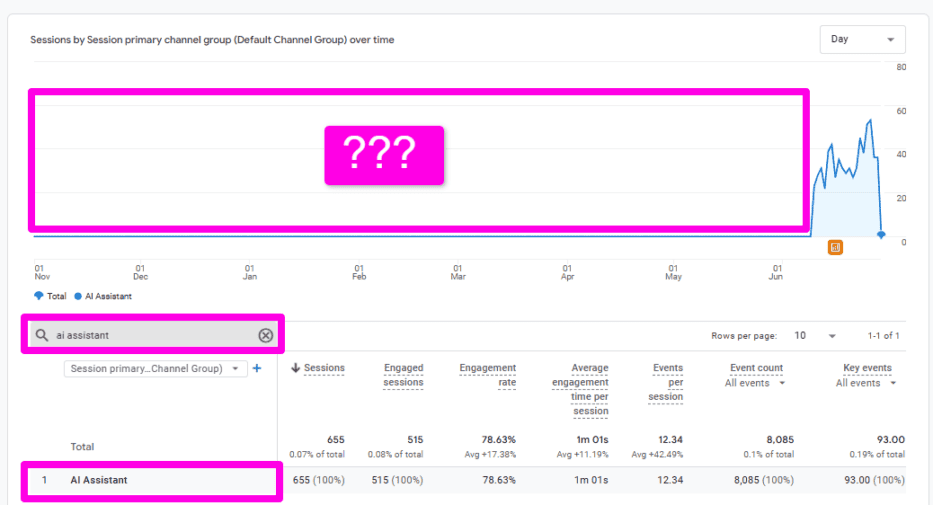
The custom AI Search channel you created above can help recover some of these past visits, since it retroactively applies to historical sessions based on where they came from. But you’re still only as good as what GA4 captured at the time.
It Shows Traffic, Not Citations
Google Analytics won’t tell you if the page was specifically cited by the AI tool.
Maybe someone clicked through from an answer where you were listed alongside four other sites. Maybe they clicked on a link buried in the middle of a chat response. Either way, GA4 considers that visit AI traffic.
The problem is, it doesn’t know why they visited.
Compare With Bing To Fill In The Gaps
Like I said earlier, this data is best used as a floor, not a ceiling. Since you know GA4 is undercounting your visits, your job is to fill in where you can.
Tracking Bing lets you do just that, since Bing offers citation data you can’t get anywhere else. Traffic data and citation data answer different questions. You need both for a full picture.
You’re At The Mercy Of Platform Source Labels
Ultimately, the whole system works by relying on AI tools to truthfully identify themselves in their referrer.
Any time a new AI tool is released, your regex won’t catch it until you update it to include that tool. Likewise, if an existing platform changes how it reports its own traffic, your formula will continue to work…but silently stop tracking traffic from that source.
Pro Tip: Check your AI Search regex every few months. Add any new platforms that are popular with your audience. There will definitely be more tools to add over time.

Wrapping It Up
Tracking your AI search traffic doesn’t have to cost you anything.
GA4 lets you see how much traffic you get from AI, which pages they visit, and what percentage of that traffic converts.
The brands winning the AI search battle today aren’t those with the largest budgets.
They’re the ones who take notice of what’s already in their analytics.
AI search will continue expanding. Those who prioritize tracking it now are building a lead that’s harder to overcome every month.
You have the tools right at your disposal.
Now go get ‘em.
If you’re serious about AI SEO, it makes sense to use a paid premium AI tracking tool to do all the calculations for you.
These are the tools that we use and recommend:
- Ahrefs Brand Radar – Track brand mentions and citations across 6 AI platforms with their massive database of 200M+ prompts, included in all Ahrefs plans.
- Semrush AI Visibility – Track brand visibility, sentiment, and citations across ChatGPT, Perplexity, Google AI Overviews, and AI Mode.
- Peec AI – A dedicated AI visibility platform covering ChatGPT, Perplexity, and Google AI Overviews with competitor benchmarking built in.
- Otterly AI – Automate prompt tracking across ChatGPT, Perplexity, Google AI Overviews, and Copilot with daily updates.
- Profound – Enterprise-grade AI visibility tracking across 10+ platforms designed for large teams with deep reporting needs.
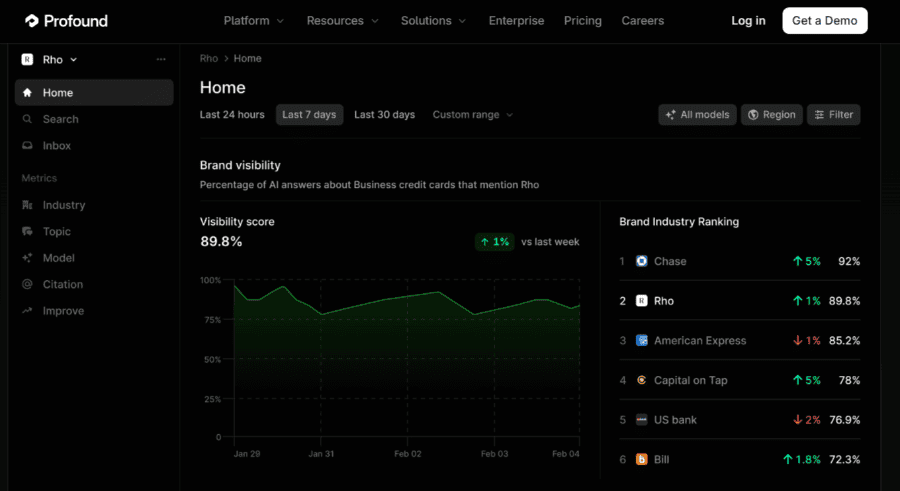
If you’re already using Ahrefs or Semrush and just need basic AI insights, this is a good place to start.
Peec AI and Otterly AI are best if you’re on a budget and want to track individual prompts across multiple platforms accurately. Profound is best for enterprise-level AI search tracking.
My recommendation is to use the free trial that comes with each tool and see what works best for your business.

Frequently Asked Questions
You Might Also Like





What Are Your Thoughts?

 Subscribe to my YouTube
 Join My Facebook Group
 Connect on Linkedin
 Free SEO Tutorials
 SEO Case Studies
 Links That Rank